Digital menu / QR menu

Your QR menu, in your guest's language.

Breakfast, lunch, dinner: which menu opens in which branch at which hour, set in one place. The guest reads it in their own language.

Automatic translationAllergen filtersOne QR, many menusOrdering from the table
Capabilities

What the digital menu does

QR codes by restaurant and by table

  • One code for the restaurant: everyone who scans opens the same menu
  • Or generate a separate code per table
  • With table ordering on, the guest picks no table; the order arrives with it
  • Download your QR codes as a printable PDF
  • The menu link sits alongside the code; share it on social and on maps
  • The guest scans with the camera, no app to install
One central catalog

  • Catalog and menu are separate things; the catalog is your item database
  • You never redefine the same item for another menu or another branch
  • Build the next menu in advance and publish it when its time comes
  • You choose which item shows in which menu of which branch
  • Sales gather on one item record, so reports and costs come out straighter

A menu worth reading

  • You set the category and item order yourself
  • Item descriptions, ingredients and dietary notes
  • Upload an item photo once and it shows on every channel
  • Item options: pizza in small, medium, large
  • Combos: burger, fries and a drink chosen inside one item
  • Menu labels: new, chef's pick, spicy, vegetarian

Automatic translation

  • Define items in your own language; other languages are translated for you
  • The guest reads the menu in theirs
  • Translations live with the item in the catalog, not in a separate file
  • Don't like a translation? Write that language's text yourself
  • Whatever language the guest orders in, you see the order in yours

Allergens and diet

  • Gluten, nuts, dairy, shellfish and the rest sit on the item itself
  • Vegan, vegetarian and halal filters on the guest's screen
  • The guest filters down to what suits them
  • Your foreign guest reads this in their own language too

Several menus, one code

  • However many menus you build, your QR code and menu link stay the same
  • The right menu opens on the day and hour you set
  • By hour: breakfast, lunch, dinner, late night
  • By day: weekday and weekend menus
  • With branches, build each branch's menu centrally and show it locally

Branch and sales channel

  • One central catalog; menus built per branch and per sales channel
  • No redefining the same items in every branch and every new menu
  • Item availability per branch: open in one, closed in another
  • A different price per channel: dine-in, delivery, takeaway
  • Items on your delivery platform menus map to this same catalog
  • An item you close by hand reads as unavailable on the digital menu within seconds

Ordering from the menu

  • Turn ordering from the menu on if you want it, leave it off if you don't
  • The guest builds their own order from the table
  • It lands on your POS screen and reaches the kitchen once you accept it
  • With a per-table code, the order knows which table it came from
  • The guest can call a waiter from the menu as well
A closer look

From the table to the phone, from the phone to the kitchen.

The code on the table

Scan the code, the menu opens

The guest scans the code on the table with their phone camera and the menu opens in their browser. No app, no signup, no waiting.

One code for the restaurant, or one per table

Have a single code for the restaurant and put the same one on every table, or use per-table codes that each carry their table number.

The code is fixed, the menu isn't

The code you stick on the table once never changes. Build as many menus as you like; the new ones open on that same code.

Ordering from the table

If you want it, your guest places their own order from the table. It lands on your team's order screen and goes to the kitchen once your team accepts it.

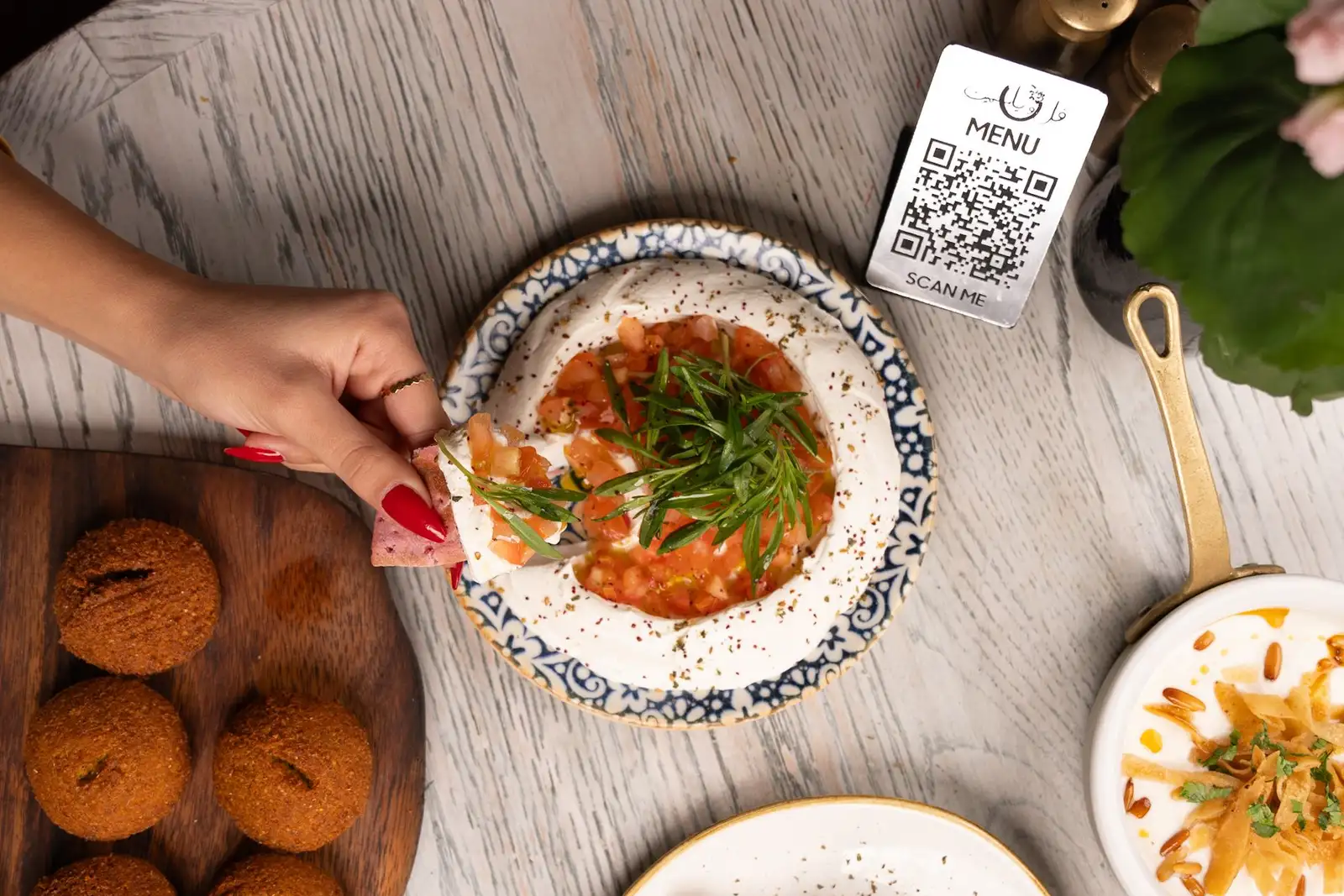
A QR menu card on a restaurant table alongside plated dishes

Every guest reads the menu in their own language

Built for foreign guests

Write your menu in your own language and let dojofood translate it into English, German, Spanish, Arabic, French and the rest.

You still own the wording

Translation runs automatically by default. Switch it off for any item in any language and write that version yourself.

They order in their language, you read it in yours

Whatever language the guest orders in, you see it in yours, and no foreign wording ends up inside your operation.

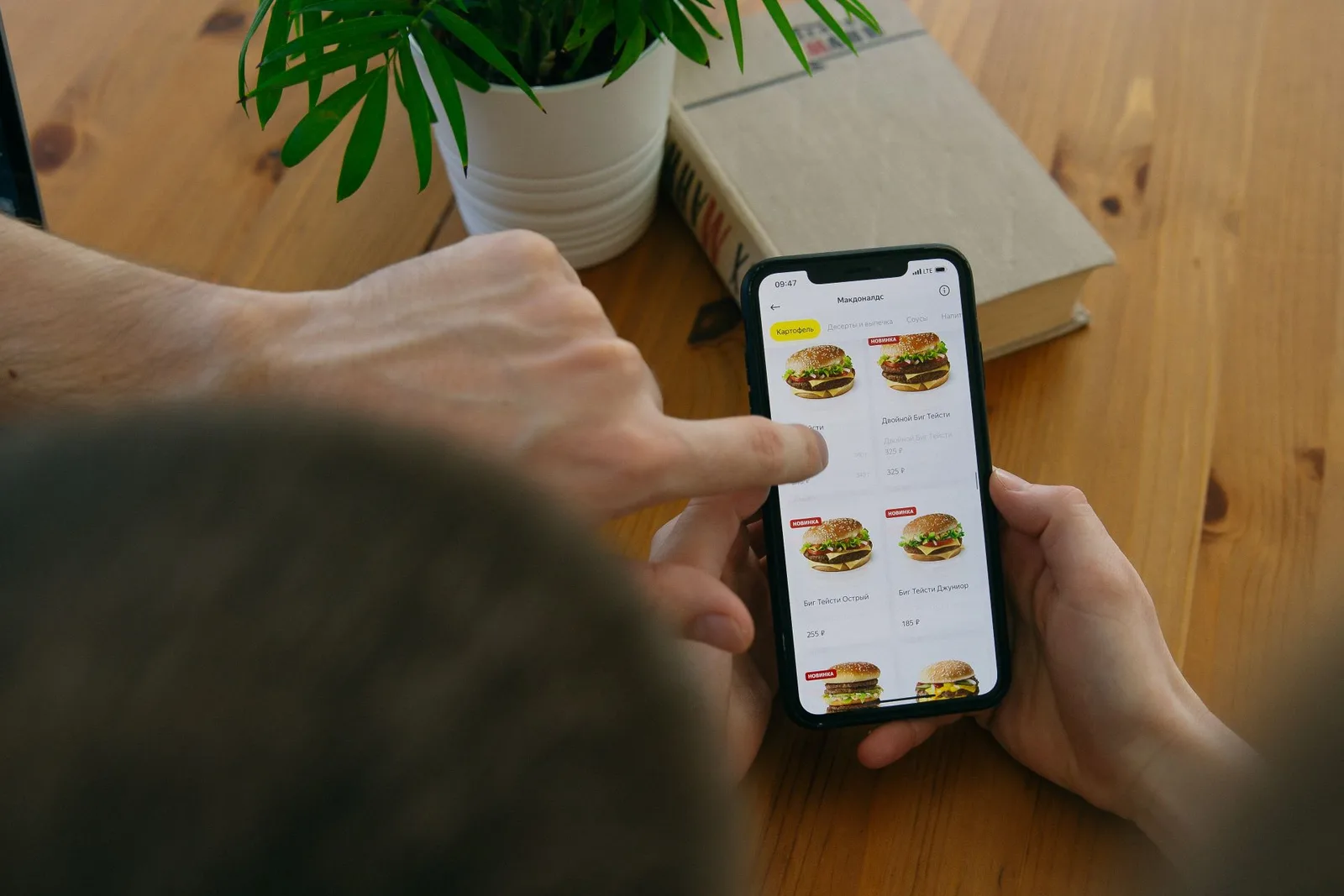
Guests at a restaurant table looking at the digital menu on their phones

Photos, allergens, filters

One image, every channel

Upload the item photo once. It shows on the digital menu, on the POS screen and on the delivery platforms that accept photos.

Allergen labels

Mark allergens such as gluten, nuts, dairy and shellfish item by item.

Dietary preferences

Mark preferences such as vegan, vegetarian and halal item by item.

Filters make choosing easy

A guest filters out gluten and decides from what's left, quickly and correctly. Nobody has to ask a waiter, and the risk goes away.

Labels steer attention

Labels like new, chef's pick, spicy and vegetarian point the guest at the item you want them to see.

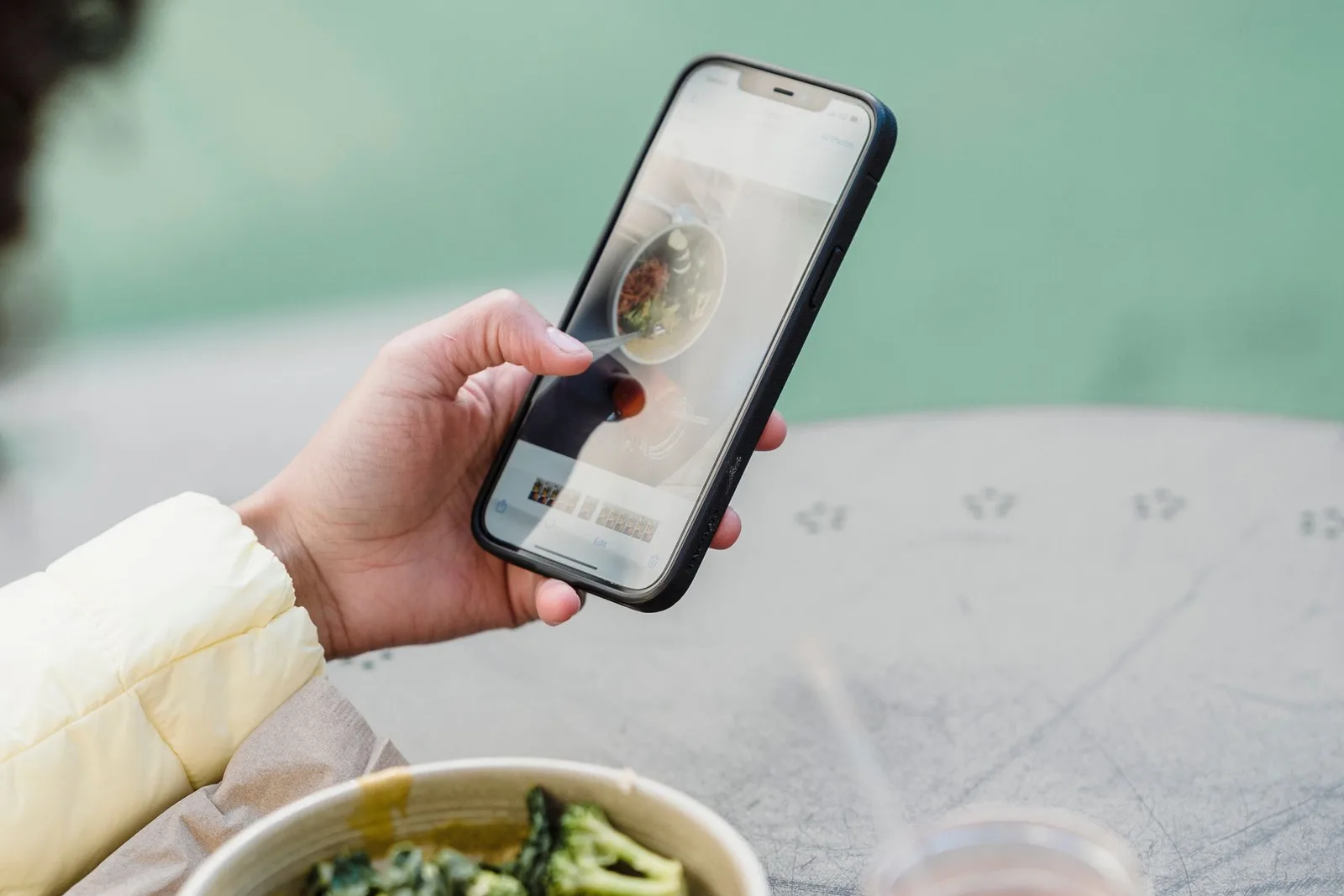
A guest in a café comparing the salad in front of them with its entry on the menu
Catalog, menu, channel

Menus managed branch by branch.

The catalog is the single central database behind your items. You build different menus out of it, and one catalog item can appear in several menus. Whether an item shows in a given branch, and on that branch's dine-in, takeaway or delivery channel, and what it costs there: all of it is managed centrally.

Catalog

  • products
  • combos
  • modifier groups
  • categories

All-day menu

every branch

Breakfast menu

Beşiktaş only

Kadıköy

Beşiktaş

what the guest sees

All-day menu

Kadıköy · Dine-in

the platform's menu is pulled in and matched to your catalog

  • Grilled köfte420
  • Lentil soup145
  • Ayran60
  • Künefe220
  • Turkish coffee95

catalog pricebranch pricechannel price

Kadıköy, Dine-in orders. 5 of 5 items visible.

The catalog is the single source. Menus reference it, they never copy it. You assign menus to branches, then set price and availability per channel. On delivery platforms you do not push the menu out; you match their items to your catalog.
From the field

Where QR menus go wrong.

The bottlenecks operators describe most when they move a menu online, and how dojofood clears them.

Getting the existing menu into a new system

Yaygın sorun

You already have a menu, on paper or online. Moving it to a new system usually means typing items in one by one. For most operators that's a punishing job, hours of work before anything is live.

dojofood'da

Moving your menu into dojofood takes seconds on your side: photograph it, upload the PDF, or paste the link to your current digital menu. The AI pulls out your items with their names, descriptions and prices and puts a draft in front of you. You look it over and approve.

The same item stored several times over

Yaygın sorun

In most digital menus items are defined per menu. Same name, same photo, but each one is a separate record in the database. Reports then show several items with one name and the numbers mislead you.

dojofood'da

In dojofood items are created in the catalog, and the catalog is your central item database. The same item can sit in different menus at different prices. Because the record is singular, that item's sales, cost and demand add up on one line across every report.

Menus and items drifting apart

Yaygın sorun

Once items are defined per menu, things start coming loose. The POS shows a different price, what reaches the kitchen changes, some menus fall behind. Contents, recipes and prices get tangled, and after a while nobody knows which item or which menu is the right one.

dojofood'da

There is one item catalog, and the same item is never redefined for another menu. Its content stays identical across every branch and sales channel. If you want the price to vary by location or channel, you do that without creating a new item. Your catalog becomes the one reference point you manage everything from.

A sold-out item still sitting on the menu

Yaygın sorun

Towards the evening an ingredient runs out but the item stays on the menu. A guest asks for it and the waiter comes back with "we're out." A small shortage turns into an apology at the table.

dojofood'da

When an item runs out, or you simply can't serve it for a while, set it to temporarily closed in the catalog. A guest browsing the menu sees it greyed out with an unavailable note. If you'd rather it not show at all, hide it and it disappears from the menu.

Printing new codes every time the menu changes

Yaygın sorun

When breakfast and dinner are separate menus, you either print two QR codes or swap the cards by hand between services. When the summer menu arrives, the print job starts over.

dojofood'da

Neither the code on the table nor the menu link on your social profile or Google Maps listing ever changes; the menu behind them does. Set the schedule once and the system handles the switch. Breakfast at 10:59, lunch at 11:01, same code.

A separate menu tool per branch

Yaygın sorun

A business with three branches usually ends up with three separate menus. When a shared item's price changes, all three need updating; one gets forgotten and that branch sells at the wrong price. Contents drift apart and the whole thing slips out of control.

dojofood'da

Items are defined in the catalog and the menus you build are used across your restaurants. A branch's menu shows only the items open in that branch. Same catalog, different view, set by rule and not by copy and paste.

Leaving translation entirely to the machine

Yaygın sorun

Automatic translation stumbles on dish names: a local speciality turns into meaningless English and the tourist has no idea what they ordered. And when allergen information gets lost in translation, embarrassment is not the worst of it.

dojofood'da

Translation runs automatically, but you can rewrite an item's text in any language whenever you want. Allergen and dietary labels are structural fields, independent of translation: the language changes, the label doesn't.

Preview

Edit the menu with the guest's view open beside you.

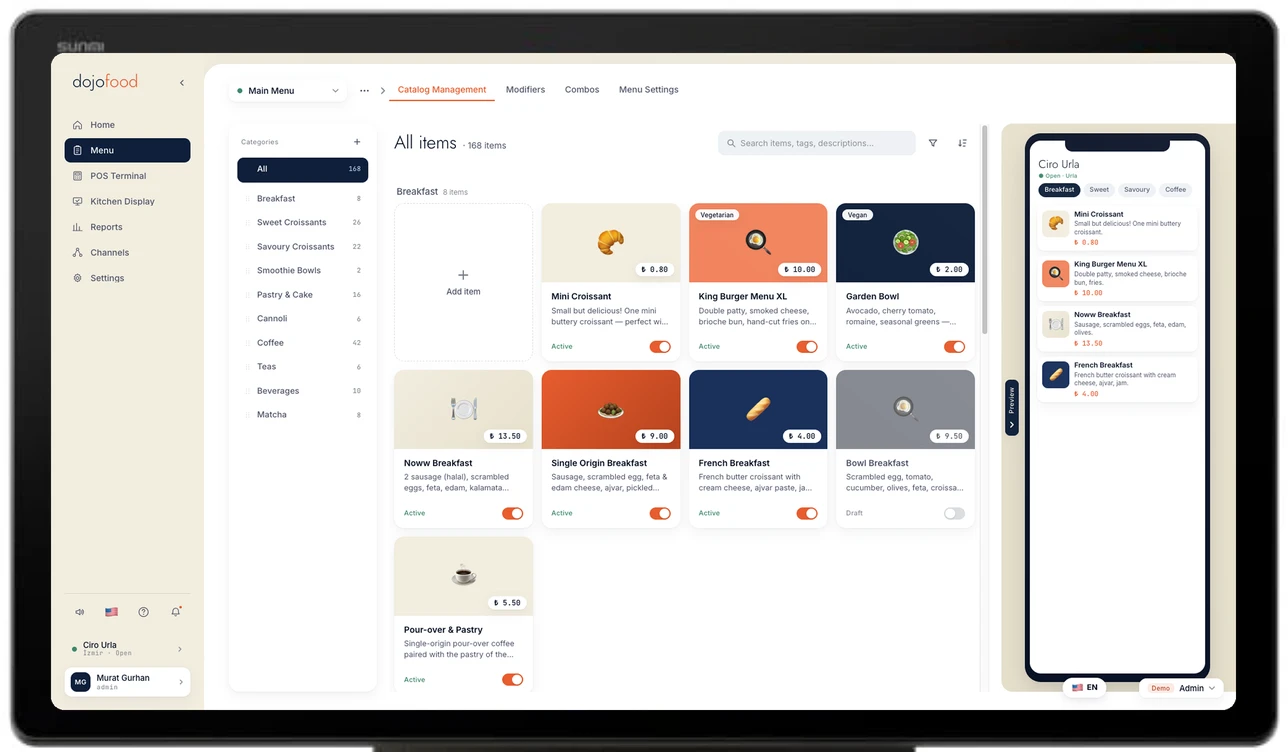
In the dojofood portal a preview stays open on the right while you work on the Catalog and Menu screens. As you define items and change menu settings, you see how the menu will look to a guest.

The dojofood Catalog screen open on a POS terminal, with the guest-facing menu in the preview panel on its right
Working with the platforms

Map your items to the ones on your delivery platforms.

You map the items on your delivery platform menus to the items in your catalog. Delivery orders then reach the right kitchen, ingredients for items with a recipe come off stock, and your sales and cost reports reflect what really happened. You open and close those platform items for sale from dojofood and update their prices there too.

DeliverooJust Eat

Explore delivery integrations →

Who it's for

A digital menu that adapts to how you work.

From a breakfast hall to a beach club, the same menu is set up around your flow. Pick your type of business and see what we've done for operations like yours.

Frequently asked questions

What operators ask about digital and QR menus.

What is a digital menu?

A digital menu is the menu your guest reads on their phone. QR menu, QR code menu and digital menu all describe the same thing: instead of a printed card, the menu opens in a browser and you control what's on it. The difference from paper is that you can change an item, a price or the whole layout without sending anything to a printer.

How does a QR menu work?

You put a QR code on the table. The guest scans it with their phone camera and the menu opens in their browser. The digital menu also has its own link, which you can put on your social profiles, on any website, or on map listings like Google Maps, so guests can reach the menu by tapping a link too.

How long before I can start using the digital menu?

You might have a paper menu, a PDF, or a digital menu you already use. Photograph your menu, upload the PDF, or paste the link to your existing digital menu, and dojofood's AI builds the menu in seconds. From there your digital menu link is live. Print your QR codes and put them on the tables whenever you're ready.

How do I move my existing menu into dojofood?

Three ways: photograph your menu, upload a PDF, Word or Excel file (up to ten files), or paste the link to your current digital menu. The AI pulls out item names, descriptions, prices, categories, option groups and allergen labels. If you give it a link, item photos come across too; if you photographed the menu or uploaded a file, you add the images afterwards. The AI does the heavy lifting; what's left for you is a final check and publishing.

Does the guest need to install an app?

No. The menu opens in the browser on their phone. No app to download, no signup, no waiting.

Should I use one QR code for the restaurant or one per table?

Either one works; it's your call. With one code you put the same one on every table. Generate a code per table and each one carries its own table; if ordering from the table is on, the order arrives knowing which table it came from. With a single code and ordering switched on, the guest picks their own table when they order.

If I change the menu, do I have to print new QR codes?

No. The QR code and the menu link never change. What changes is the menu behind them. However many menus you build, the same code works. You set which menu opens on which day and at which hour once, and the system does the switching: breakfast at 10:59, lunch at 11:01. Another way to see it: the code and the link open your menu page, and you decide which menu that page shows. Create a new menu whenever you like and schedule several of them on the same page.

Can guests order from the digital menu?

Not by default, but yes if you want it. For some operations a guest building their own order is essential; others want the waiter to take it. dojofood supports both: ordering from the menu is a single switch. Turn it on and your guest adds items to a basket and places the order from the table; it lands on your team's order screen and goes to the kitchen once your team accepts it. If you only want to show a menu, leave the switch off.

Which languages does the menu show, and who does the translating?

You build the menu in your own language; translation is automatic by default and the guest reads the menu in theirs. Widely used languages such as English, German, Arabic, Russian and French are covered. If you don't like a translation, write that item's text in that language yourself and automatic translation switches off for that item in that language.

If a guest orders in a foreign language, how do I see the order?

Your guest reading the menu in their own language doesn't mean the order reaches you in it. You see the order on your screens in your language, with the items exactly as you defined them. Whatever language the guest browsed in, the order that lands on your team's screen is in yours, and it goes to the kitchen that way too.

What's the difference between the catalog and a menu?

The catalog is the central product database where your items live; a menu is an arrangement of items you picked from that catalog and show to guests. One item can appear in several menus but exists as a single record. That's why you never define the same item twice.

Why are the catalog and the menu separate?

Without a central catalog you would redefine items in every menu; even copying an item stores each copy as its own record. Items across menus and branches would drift apart over time and nobody could say where the current version lived. In the catalog model items sit in one place and the item record stays singular. However many branches or sales channels you run, the item shows the same content everywhere, while you keep the freedom to vary its price by branch and channel. A single item record is also what keeps your sales and cost reports honest: you can read directly how much an item sold in which branch and on which channel.

When does a price or item change reach the menu?

The moment you make the change in the catalog, the new price appears on your digital menu in every branch within seconds. You don't update branches one by one, or their delivery, takeaway and dine-in menus separately.

How do I take an item off the menu when it runs out?

Set the item to temporarily closed in the catalog. A guest looking at the menu sees it greyed out and marked unavailable, and cannot order it. If you'd rather it not appear at all, hide it. Either change takes effect on the digital menu within seconds.

Can I show allergens and dietary preferences on the menu?

Yes. Mark allergens such as gluten, nuts, dairy and shellfish, and dietary preferences such as vegan, vegetarian and halal, on each item. Guests filter the menu by those and see what they can eat.

Can I keep different menus and prices for my branches and sales channels?

Yes. You choose which branch an item is open in and which sales channel it appears on. A branch's menu shows only the items open in that branch. Price is set by branch and by channel too, so the same item can cost one thing at the table and another on delivery. You don't need a new item or a separate menu file for that.

Have questions? Let's talk.

Tell us your needs and your challenges. We'll show you how dojofood eases your operation.

Walk us through your current stack, your marketplace list, your volume. We'll show you exactly how dojofood fits, what it replaces, how to get started, and what it costs.